


Comics · Comiiic Learn
How to Add Speech Bubbles to Comics: A Beginner's Guide
Speech bubbles guide the reader through a conversation. Their position controls the sequence, their shape suggests emotion, and their size gives dialogue room to breathe. Plan them while sketching: readable lettering is part of the storytelling, not a final decoration.
1. Recognize Common Speech Bubble Types
An oval with a solid outline often signals normal dialogue. A jagged outline can suggest shouting; a dashed outline can suggest whispering. Clouds with small trailing circles often indicate thoughts, while angular boxes can suggest an electronic or robotic voice. An off-panel speaker can use an ordinary balloon whose tail leads toward the edge where the voice comes from. These are conventions, not universal rules: cultures, genres and individual artists use them differently. Establish a visual language and apply it consistently.
2. Choose a Shape That Fits the Voice
Try the same short line, such as “Wait!”, inside an ellipse, a rounded rectangle, a rectangle and a jagged balloon. The words stay the same, but the outline changes their delivery. Ellipses feel familiar for conversation; rounded rectangles accommodate longer lines; hard corners can feel mechanical; spikes add intensity. A rectangle can also mean narration, so context and a clear tail matter. Reserve dramatic shapes for moments that need them.
3. Place Bubbles in Reading Order
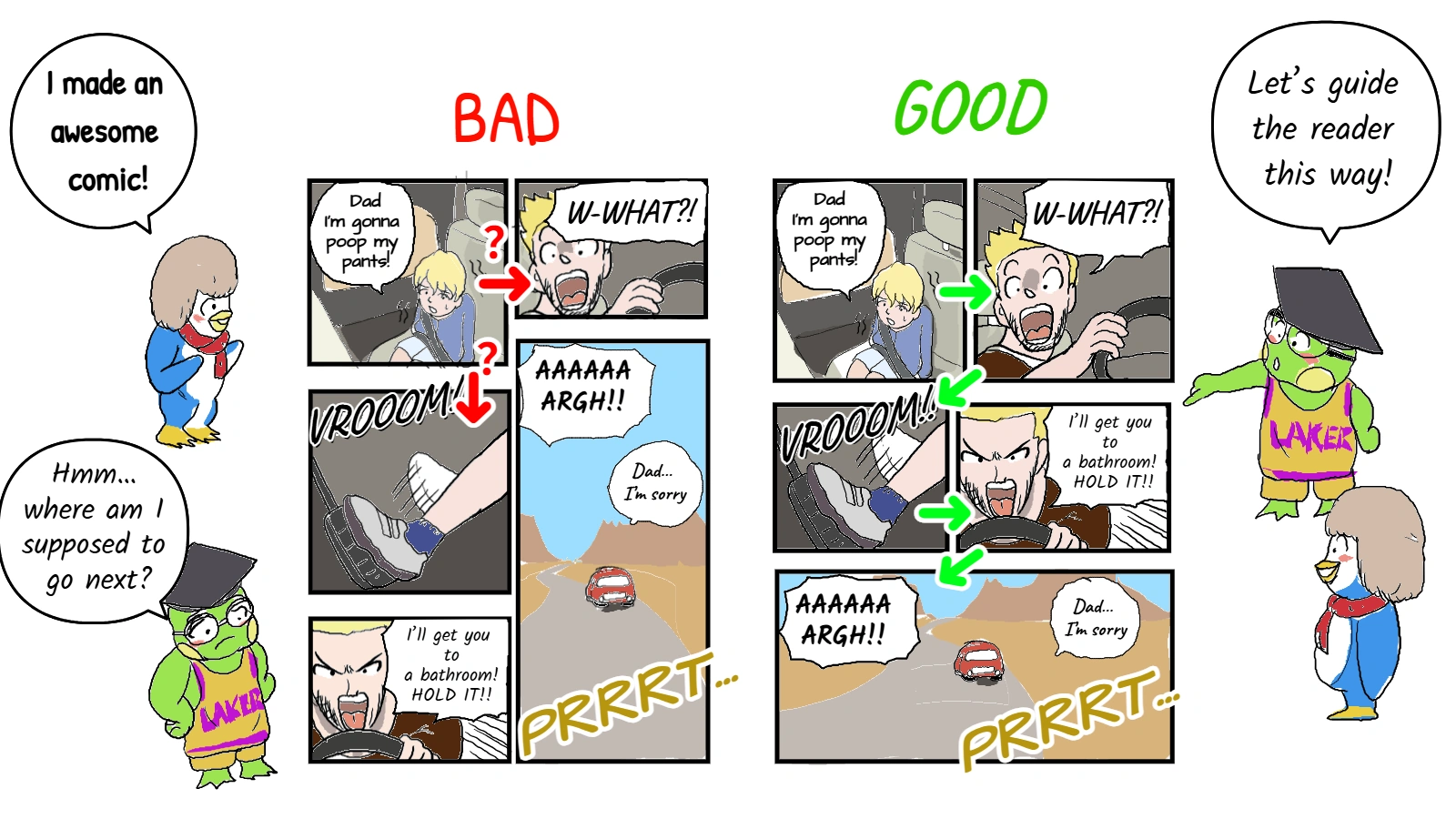
For a left-to-right page, place the first balloon toward the upper left and the reply farther right or lower. For right-to-left manga, reverse the horizontal sequence. Within each panel, make one route obvious before moving to the next panel. Bubbles at the same height can become ambiguous if the speakers and tails suggest conflicting directions. Move a balloon or recompose the panel instead of asking the reader to jump backward.
Reserve quiet space above or beside characters. Keep faces, hands and important props visible. Trace only the dialogue, then the whole page: both routes should agree. In the diagram, arrows show the intended sequence; the crossed example makes the reader retrace the panel.
4. Make the Lettering Comfortable to Read
Choose a font with clear letterforms and support for your language. Test its size at the actual reading size on a phone or printed page; there is no single pixel size for every format. Keep ordinary dialogue sizes consistent. Use comfortable line spacing, natural line breaks and a balanced text block. Centering often suits an oval; left alignment can suit a box. Avoid stretched letters, cramped lines and a lone word squeezed into a narrow corner.
Leave visible padding on every side, including around the longest line. Dark text on a light, opaque bubble usually stays clear over detailed art. If the words do not fit, shorten the dialogue, enlarge the balloon or split the exchange across panels. Excessive shrinking makes the reader work harder and can make normal speech look like a whisper.
5. Point Tails Toward the Speaker
Aim a tail toward the speaker's mouth or head without touching the face. Keep it short enough to follow at a glance. With several speakers, give each balloon an unmistakable target and avoid crossing tails. For an off-panel voice, lead the tail toward the appropriate panel edge; establish the speaker through context when necessary. If a tail must cross a face or another balloon, move the balloon or change the composition.
6. Follow an Editable Digital Workflow
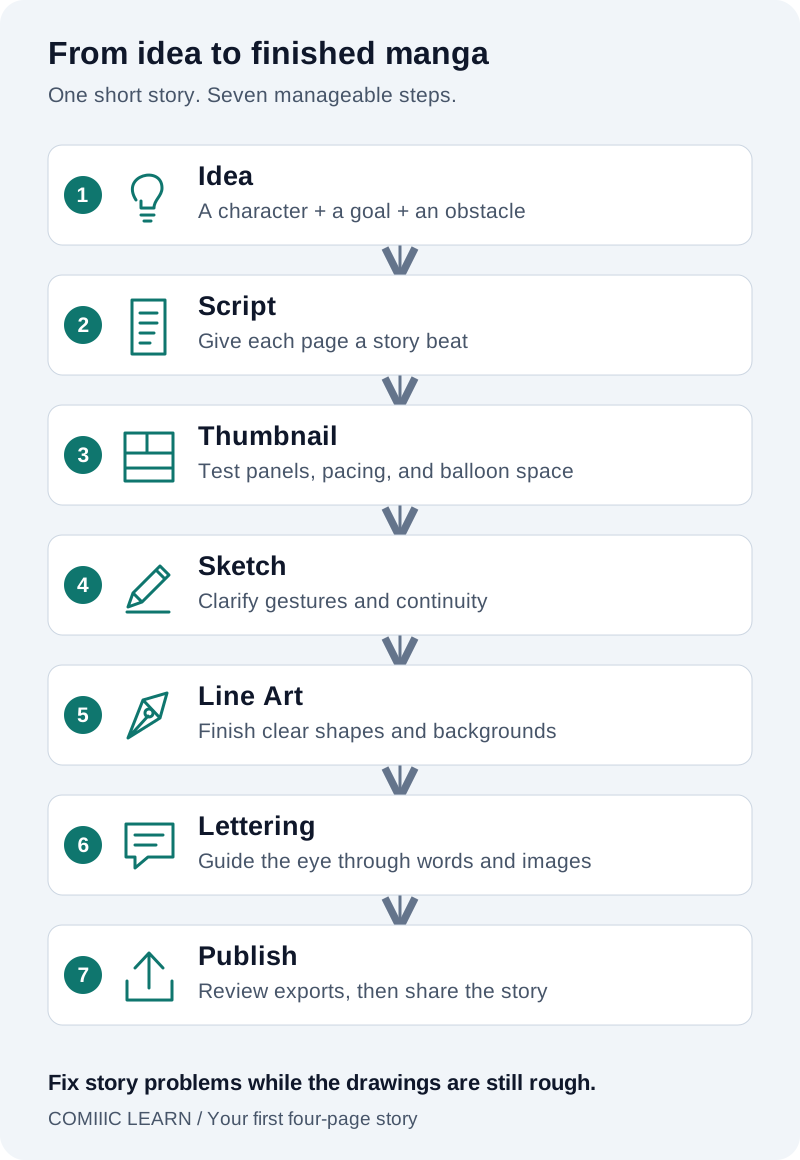
Prepare the artwork and mark the reading direction. Draft the dialogue in order, place the text, then build bubbles around it. Adjust size and padding before adding tails. Keep lettering and bubbles editable so revisions, spelling corrections and translations can change their size without repainting the artwork. Do not assume every editor automatically resizes a balloon to fit its text.
Review the full page at its intended display size, not only while zoomed in. Read it aloud to catch excess dialogue and awkward pauses. Export a copy and inspect that too: the editable project remains your master. A clear panel leaves room for both the dialogue and the character's reaction.
Build the rest of your comic with the complete production guide.
7. Add Bubbles in Comiiic Studio
In the drawing editor, choose Text and click the page to type; click existing text to edit it. The text settings offer font selection and size controls. Choose Speech balloon and drag to place a balloon. Its shape controls include roundness and burst styles. Text and balloons are separate elements: adjust their placement and size to leave padding rather than expecting automatic text fitting.
Choose Tail and drag from inside a balloon outward to add or replace its tail; the settings include tail width. Start with one short line and one balloon, then check the result at reading size. Use the Studio link below to practice. The general whisper and electronic examples in this guide illustrate lettering conventions, not dedicated Studio presets.
8. Fix Common Speech Bubble Mistakes
Too-small bubble or text touching the edge: enlarge it and restore padding. Unclear order: reposition the first line and reply. Wrong tail target: aim it toward the correct speaker. Hidden face: move the balloon into quieter space. Inconsistent font sizes: choose a normal dialogue size and use variation deliberately. Too much dialogue: remove repeated information or give the exchange another panel. Fix the cause before polishing the outline.
9. Practice With Three Small Exercises
First, draw two characters exchanging one short line each; ask someone to identify who speaks first. Next, repeat the same dialogue as a shout and a whisper, changing the outline while keeping every word readable. Finally, spread a conversation over three panels in your chosen reading direction. Number the balloons on a draft and check that the finished page preserves that order without the numbers.
Keep Practicing One Clear Conversation
Finish a small scene before designing a long chapter. Check reading order, lettering, padding and tail targets at actual size, then ask a new reader to follow the conversation without help. Revise the spot where they hesitate. Each clear exchange teaches you more than a page of elaborate bubbles with nowhere for the words to go.